

 Admin Login
 Member Login
The right people in. Your rules, enforced.
Every check-in is checked against the memberships, bills and waivers already in fitdegree. Your team sees the answer right away.
- Built into fitdegree
- No special front desk hardware
- Kisi optional
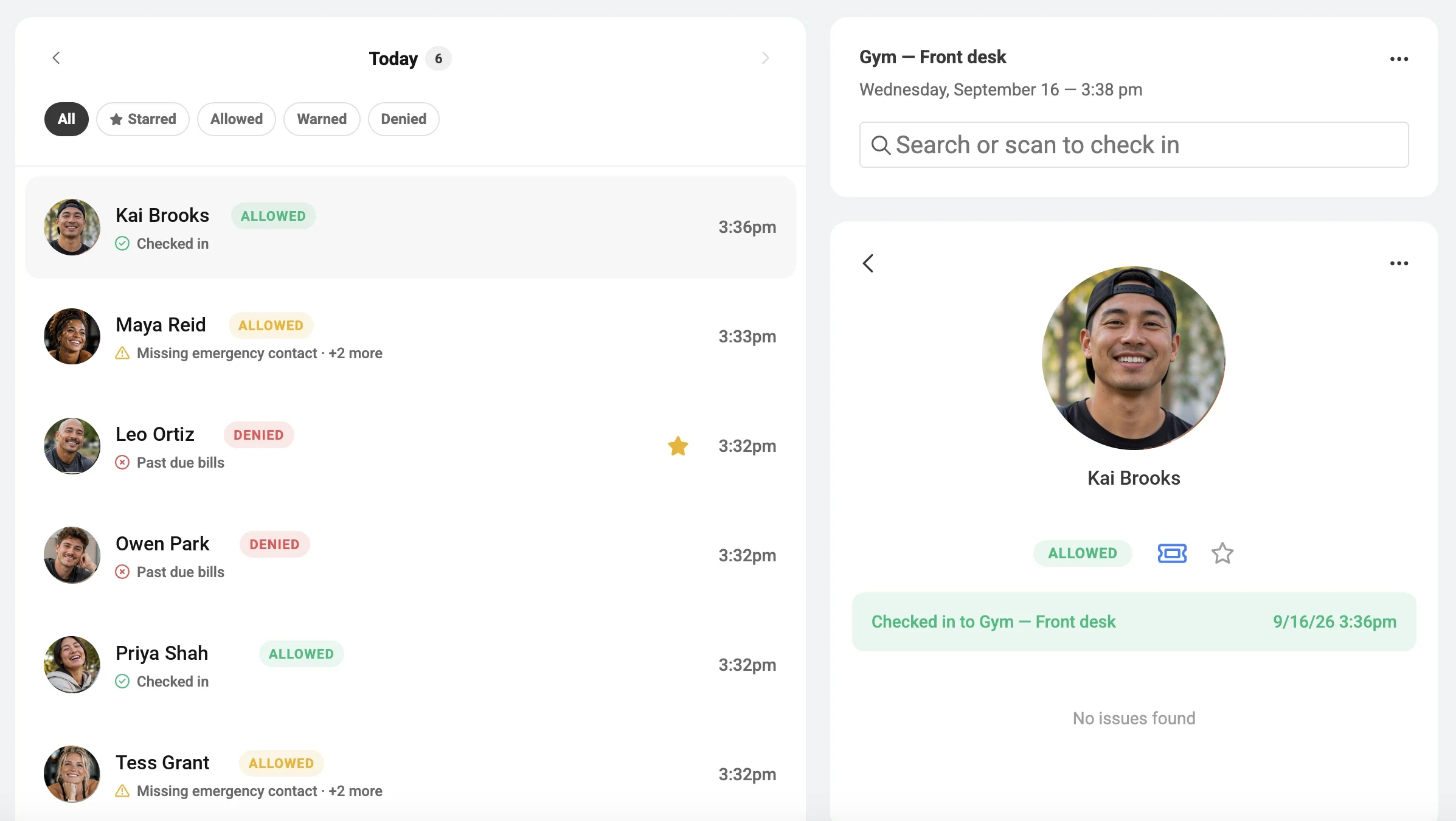
Access uses what fitdegree already knows.
A separate access list is one more thing to keep up to date. Access reads what fitdegree already knows about each client, so nobody cross-checks memberships, bills and waivers by hand.
Already in fitdegree
Your Access Point Rules
- Access perk is valid
- No past due bills
- Required waivers signed
- Emergency contact on file
- Autopay card is current
Deny or Warn, rule by rule
At Check-in
- AllowedEverything checks out
- WarnedIn, with a flag for your team
- DeniedA rule set to Deny isn’t met
Select a source to follow it through. Starred memo checks can only warn; the other rules can deny or warn.
Access works like the rest of fitdegree.
Pricing options already decide what clients can book. Add an Access Perk to the ones that should include entry, and the same pricing option decides who gets in at each Access Point.
- Add an Access Perk to a membership, pack or other pricing option.
- Clients who buy it get the Access Perk along with their other perks.
- At check-in, the Access perk rule confirms it’s valid.
A pricing option’s perks
- Class PerksLike a class pack
- One-on-One PerksLike a one-on-one pack
- Guest PerksLike a guest pass
- Access PerksLike an access packNew

Access Point
Gym · Front desk
Diagram of how perks relate. Pricing options, perks and Access Points are set up in fitdegree.
You set the rules. fitdegree checks them.
Pick a situation, then choose how the rule responds. You’ll see what the front desk sees. Each rule can stop the check-in or let the client in with a flag for your team.
If the rule isn’t met:
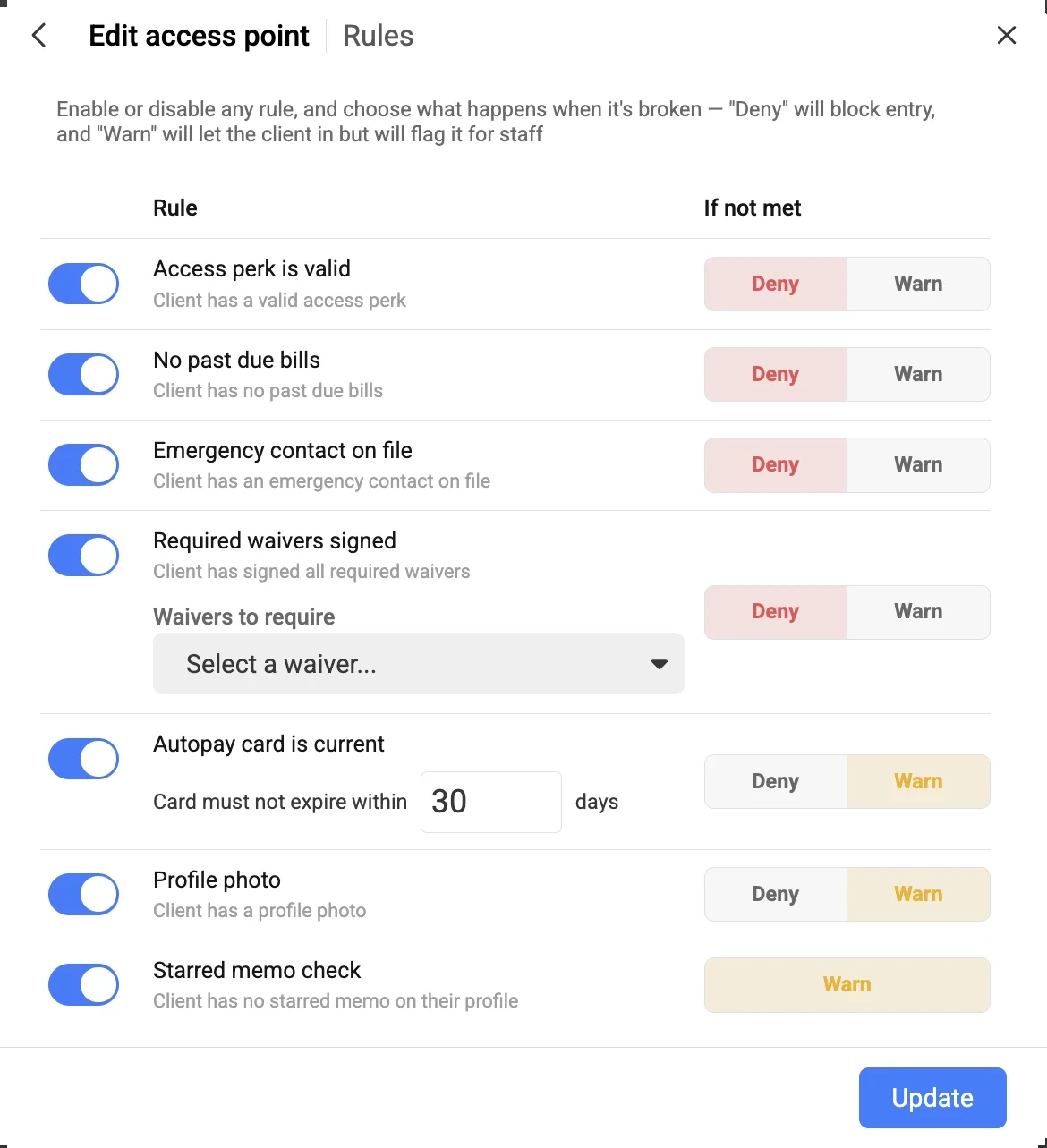



The Rules screen from fitdegree with an example configuration; dashboard rows are from the demo account. Response options vary by rule: starred memo checks can only warn.
From scan to answer in seconds.
Four steps, about as long as it takes to say hello. Watch one check-in go through.
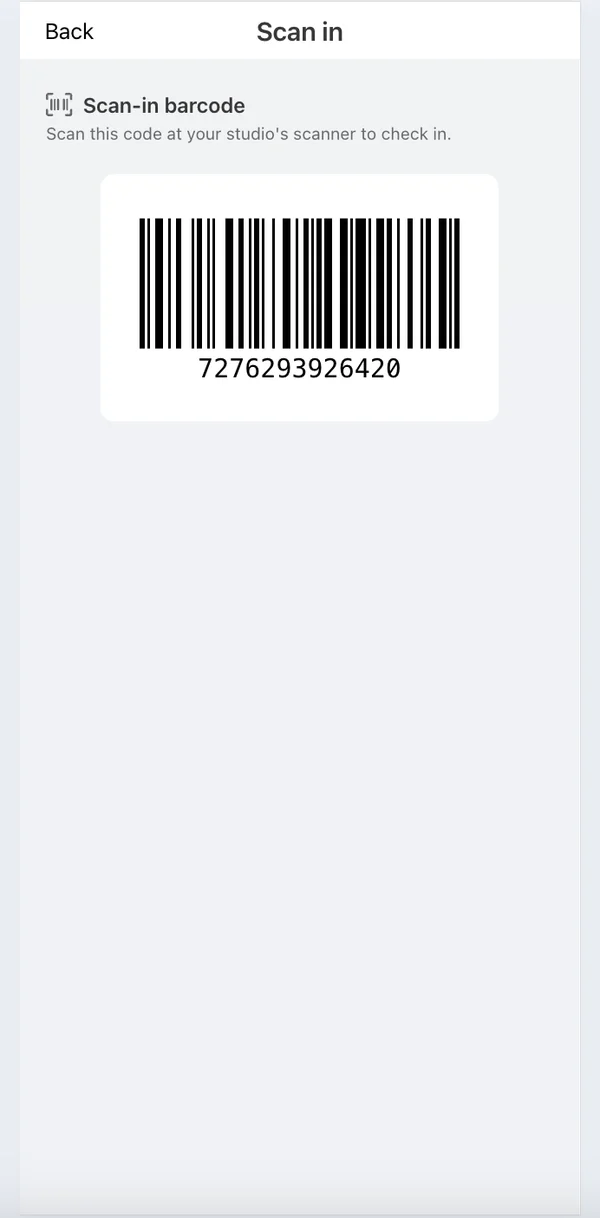
- Client shows their barcodeFrom the scan-in screen in their fitdegree account.
- Scanned or checked inWith an ordinary compatible scanner and the Access page open, or manually.
- Rules runfitdegree checks that Access Point’s rules.
- The desk sees the answerAllowed, warned or denied, with the issues behind it.
Need the door to do the checking, too?
Access check-ins work without any door hardware. If you offer limited-hour or 24-hour access, fitdegree can work with Kisi to bring the door into the picture.
fitdegree AccessAlways on
- Membership eligibility and Access Perks
- Rule checks at each Access Point
- Check-in information on the Access dashboard
KisiOptional integration
- Physical door access control
- Door hardware from Kisi
- Limited-hour or 24-hour entry
Kisi is not required to use fitdegree Access. Door access through Kisi uses Kisi’s own products and hardware, quoted and priced by Kisi.
Questions about Access.
Choosing software is a big decision. Here are a few things studio, gym, and club owners ask us most.
No. fitdegree Access can be used on its own. Kisi is an optional integration for businesses that want to add physical door access.
No. For the standard Access scanning workflow, you can use an ordinary compatible barcode scanner with the Access page open. Staff can also check clients in manually.
Clients can open their scan-in barcode from their fitdegree client experience.
Yes. Access is available as a Perk, so you can attach it to the pricing options that should include facility access.
Yes. You can set Access Point rules for past-due bills, required waivers, emergency contacts, autopay card status, profile photos and starred memos. For most rules you choose whether a client who doesn’t meet it is denied or let in with a warning for your team; starred memo checks can only warn.
Book the 15-minute Access Demo. Nick can walk you through the fitdegree workflow and how the optional Kisi integration fits into physical door access.
Still have questions? Talk through your business with someone who knows the software.
Schedule a Demo
15 minuteswith Nick D. Hale, Founder and CEO
See it with your own rules in mind.
Nick will show you Access from setup to the front desk, answer your questions and help you decide whether it fits your business.
- See Access from setup to check-in
- Talk through your rules and policies
- Ask about 24-hour access with Kisi